
Tutorial
How to Use Shaku: Find Your Size From Two Photos and Shop With Confidence
A step-by-step guide to Shaku: how to measure yourself online with two photos, get a size recommendation for the brand you're shopping, and use try-on, photo search and Fit Forecast before you buy.
Published October 24, 2026
Most sizing mistakes happen before the box ever arrives. You pick your usual size, the brand cuts differently, and the return label goes back in the drawer. Shaku is built to move that decision earlier: you measure yourself once with your phone, then shop with numbers instead of guesses. This guide walks through how to set it up, how to get good measurements, and how to use the other tools in the app when you're deciding what to buy.
What Shaku does, in plain terms
Shaku is a shopping app with a few separate tools. Find My Size (listed as Body Measurement in the app) takes two photos of you and turns them into body measurements, then recommends a size against the size chart of the brand you're shopping. Virtual try-on shows a garment on your own photo. Search lets you find pieces by describing them or by snapping a picture. Fit Forecast and Season Fit help when you're shopping for a pregnancy or a growing child.
Two things are worth knowing up front. Find My Size and virtual try-on are separate tools: one gives you numbers and a size, the other gives you a visual preview. And neither one builds a 3D model of your body. When you're ready to buy, checkout happens on the retailer's own site.
How to find your size with Shaku
Step 1: Open Shaku on your phone or at app.shaku.tech and go to Find My Size (Body Measurement).
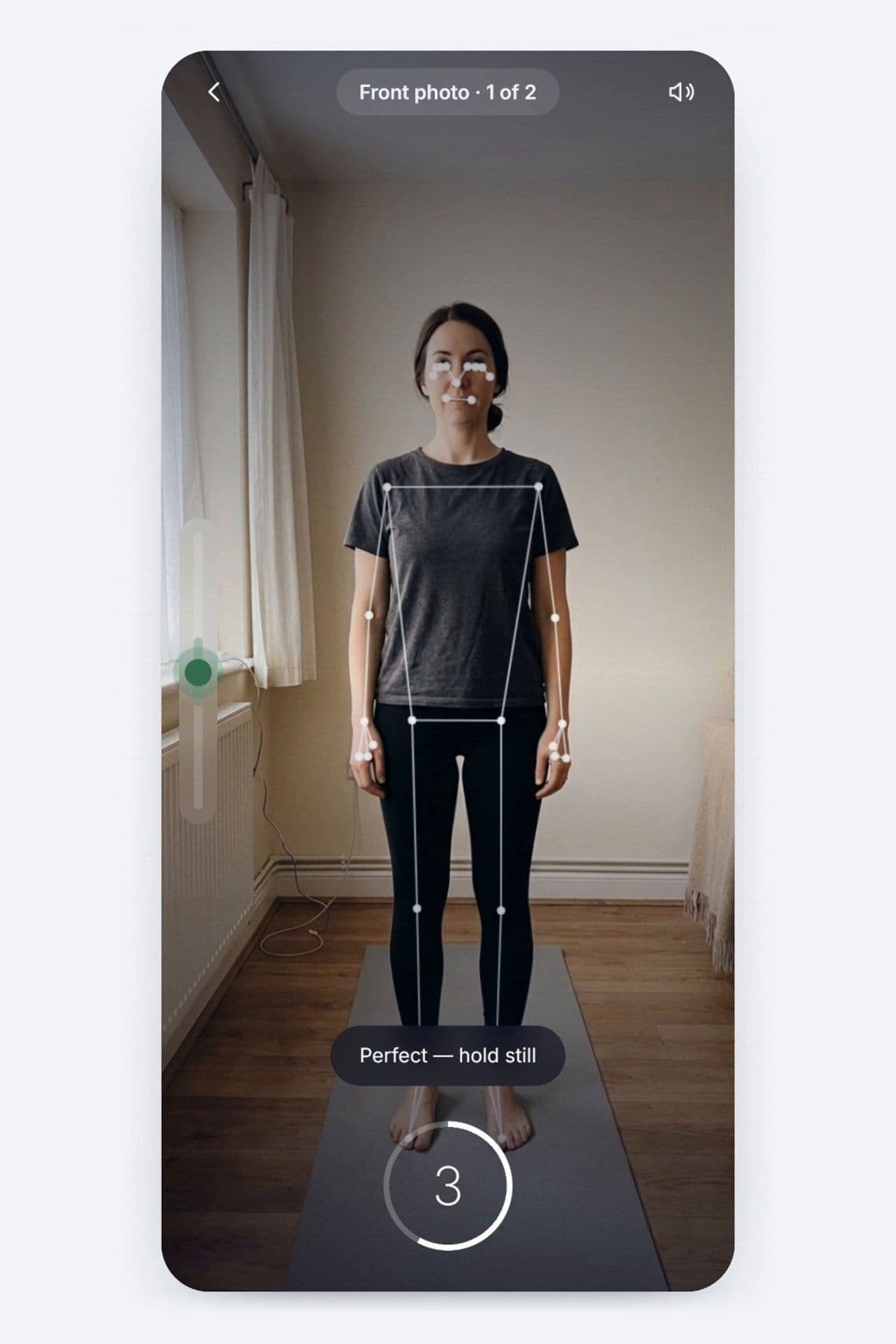
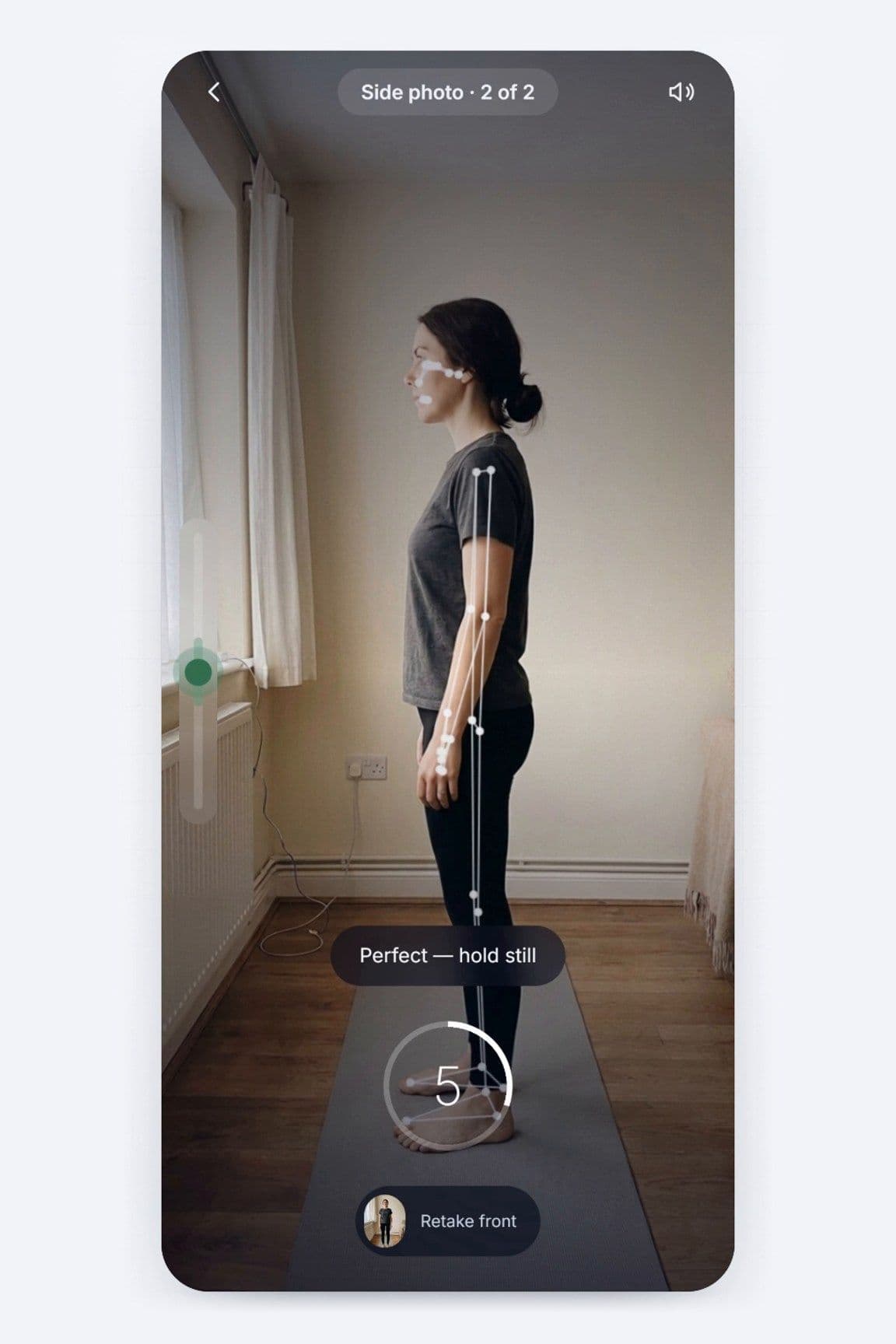
Step 2: Take the two guided photos, one from the front and one from the side. The on-screen guides show you where to stand.
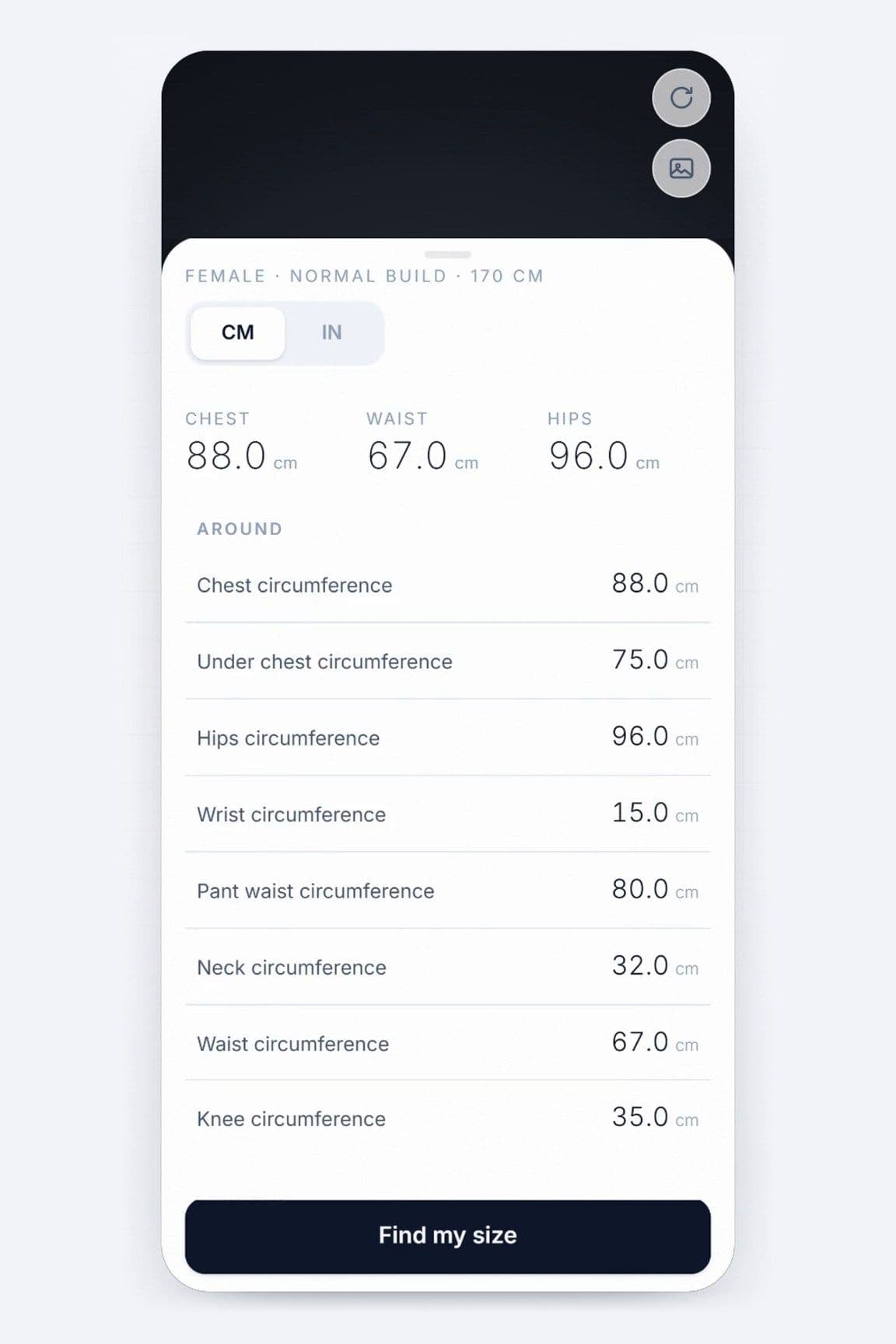
Step 3: Review your measurements. You'll see a full grid, including chest, waist, hips, shoulder, neck, wrist and knee, and you can switch between centimetres and inches.
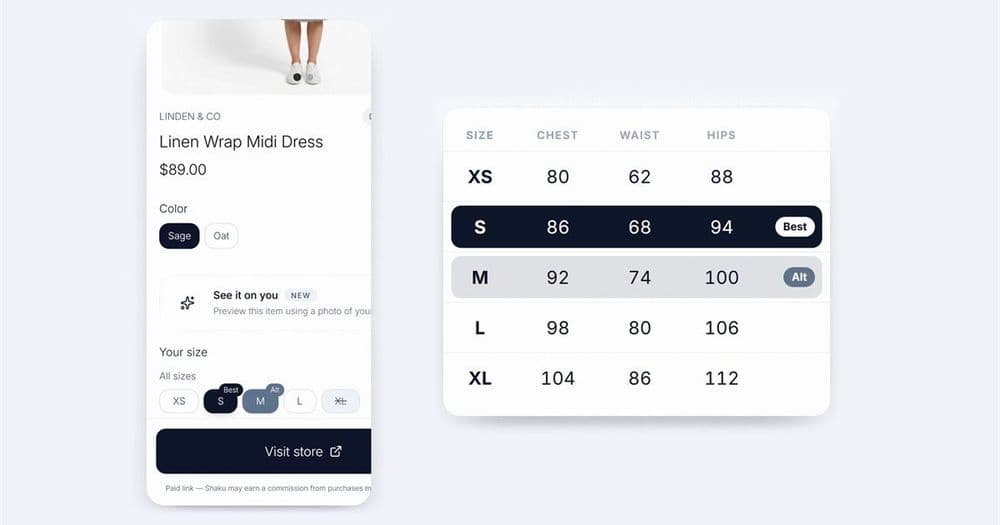
Step 4: Shop. Your measurements are saved, so you don't need to scan again for every purchase. Shaku uses them to recommend your best size match against the size chart of the brand you're shopping.
Watch it in action: Measure yourself with two photos, a 33-second video walkthrough (includes AI-generated example images).
How to take photos that measure well
Good photos give you better numbers, and a few habits make a real difference. Wear close-fitting clothes, like a plain t-shirt and leggings or slim jeans, so the outline of your body is clear. Baggy layers, puffer jackets and long open cardigans hide where your waist and hips actually are.
Stand against a plain, uncluttered background in even light, with your whole body in the frame from head to feet. Stand naturally, feet a little apart and arms slightly away from your sides, so your arms don't blend into your torso. If you can, ask a friend to take the photos, or prop your phone at about waist height so it isn't tilted up or down. If a photo comes out blurry or cut off, retake it. It only takes a few seconds.
Using your size when you shop
Sizes aren't standard. A medium from one label can be closer to a large from another, and the same brand can cut a coat and a pair of trousers differently. That's why the recommendation is tied to each brand's own chart rather than to one universal size.
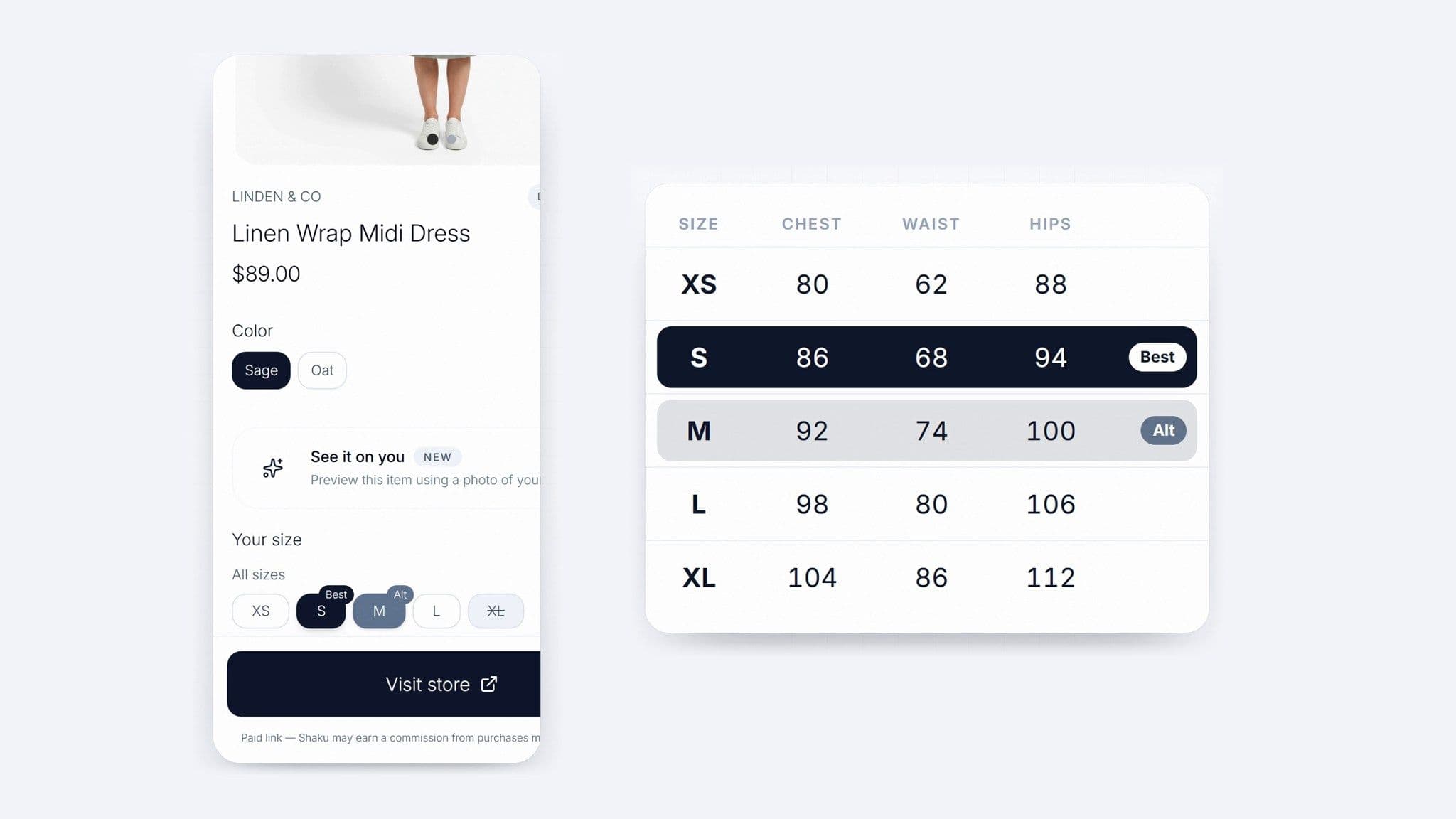
A few things still help. Read the product's fit notes: "relaxed", "oversized" and "slim" all change how much room the garment is meant to have. If a product lists garment measurements, compare them with your own and leave room for what you'll wear underneath. And if you land between two sizes, pick based on the measurement that matters most for that piece, such as shoulders for a blazer or hips for a pencil skirt.
Watch it in action: Find your size on a product, a 22-second video walkthrough (includes AI-generated example images).
See it on you with virtual try-on
Virtual try-on answers a different question: what will this look like on me? On a product page, tap "See it on you", choose the garment type (top, bottom, full-body, or top and bottom), pick the product photo, and Shaku shows the piece on your own photo.
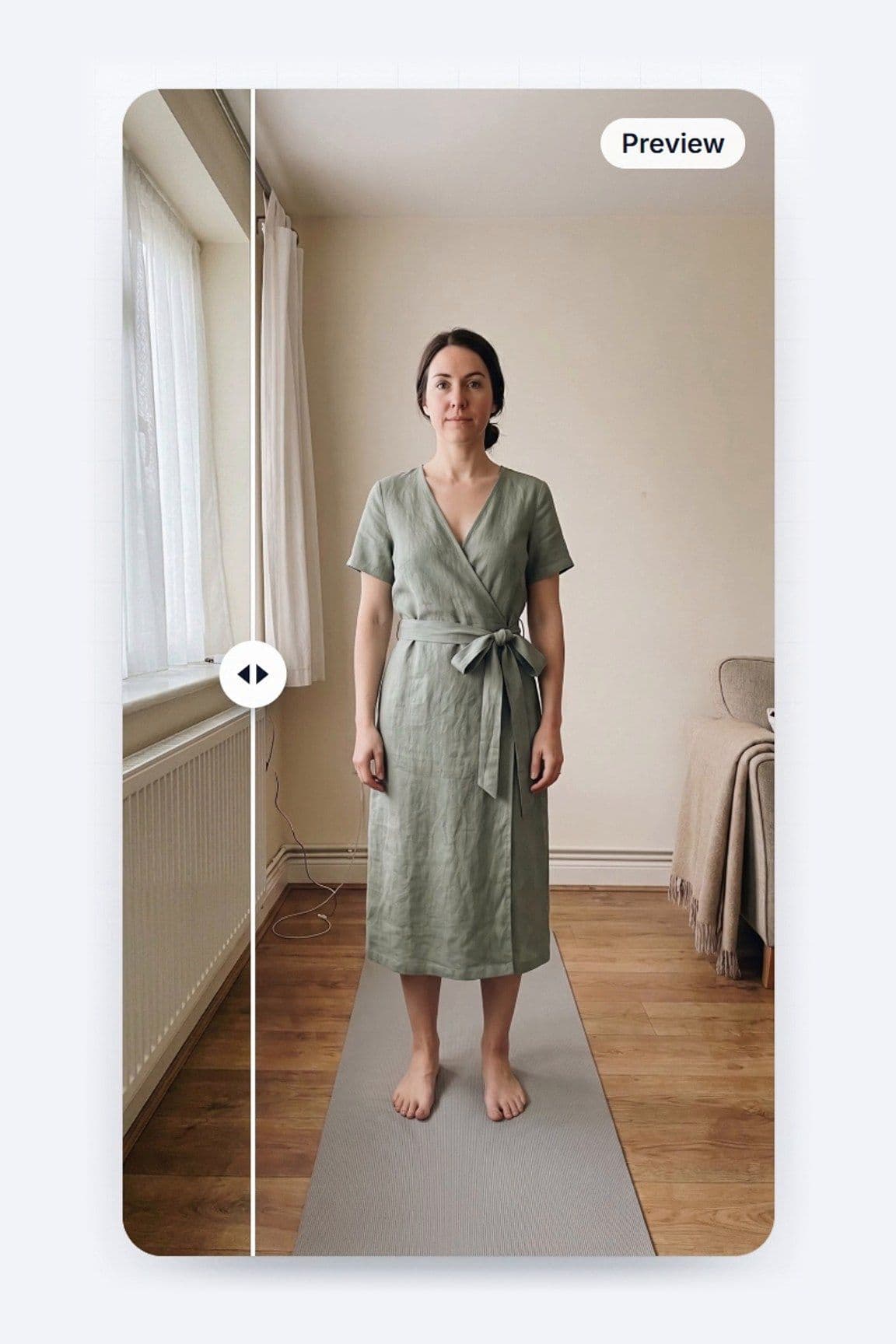
Use it to judge colour, length and overall style against your own look. Treat it as a visual preview, not proof of fit. For sizing, rely on Find My Size.
Watch it in action: See it on you, a 25-second video walkthrough (includes AI-generated example images).
Find pieces by text or by photo
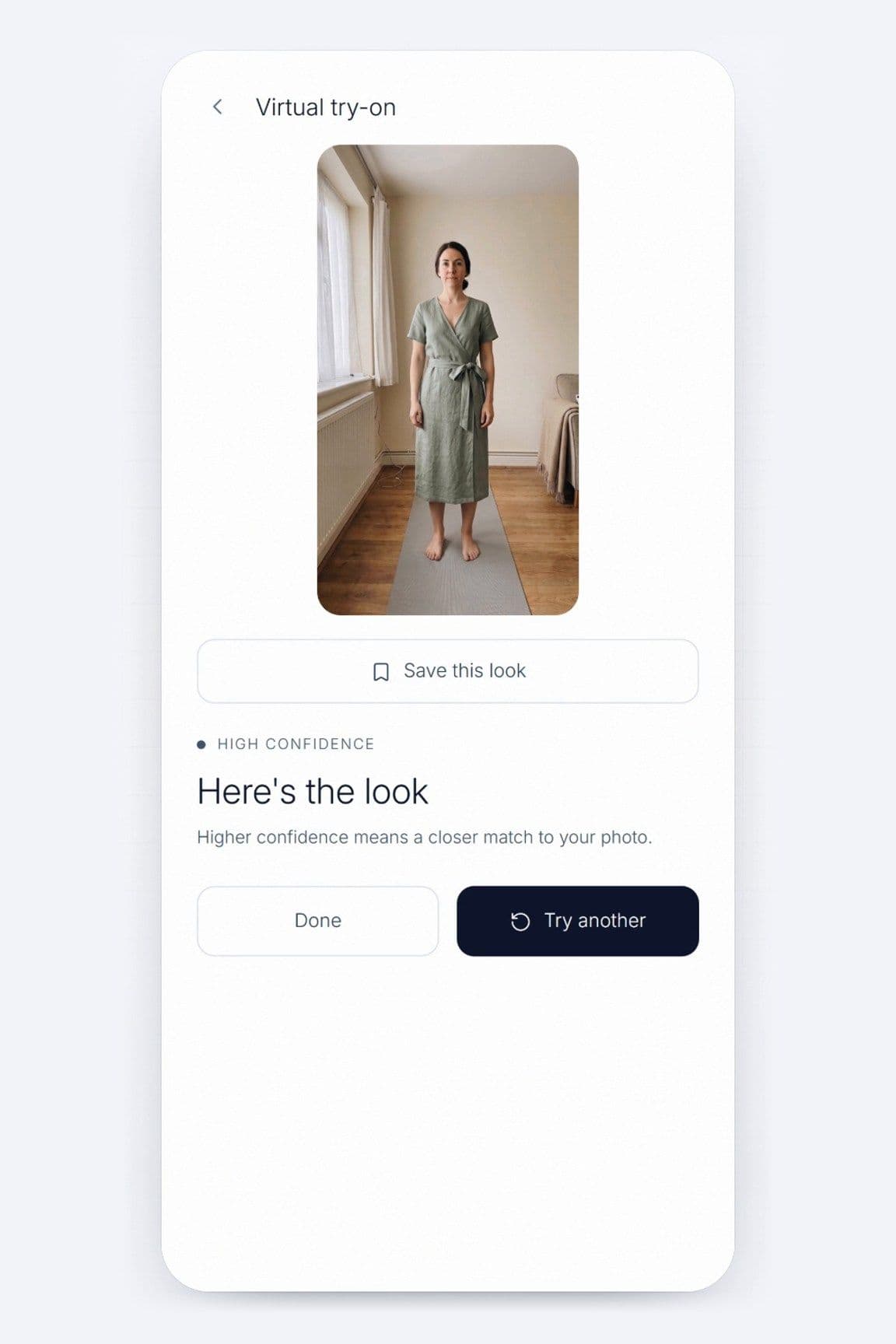
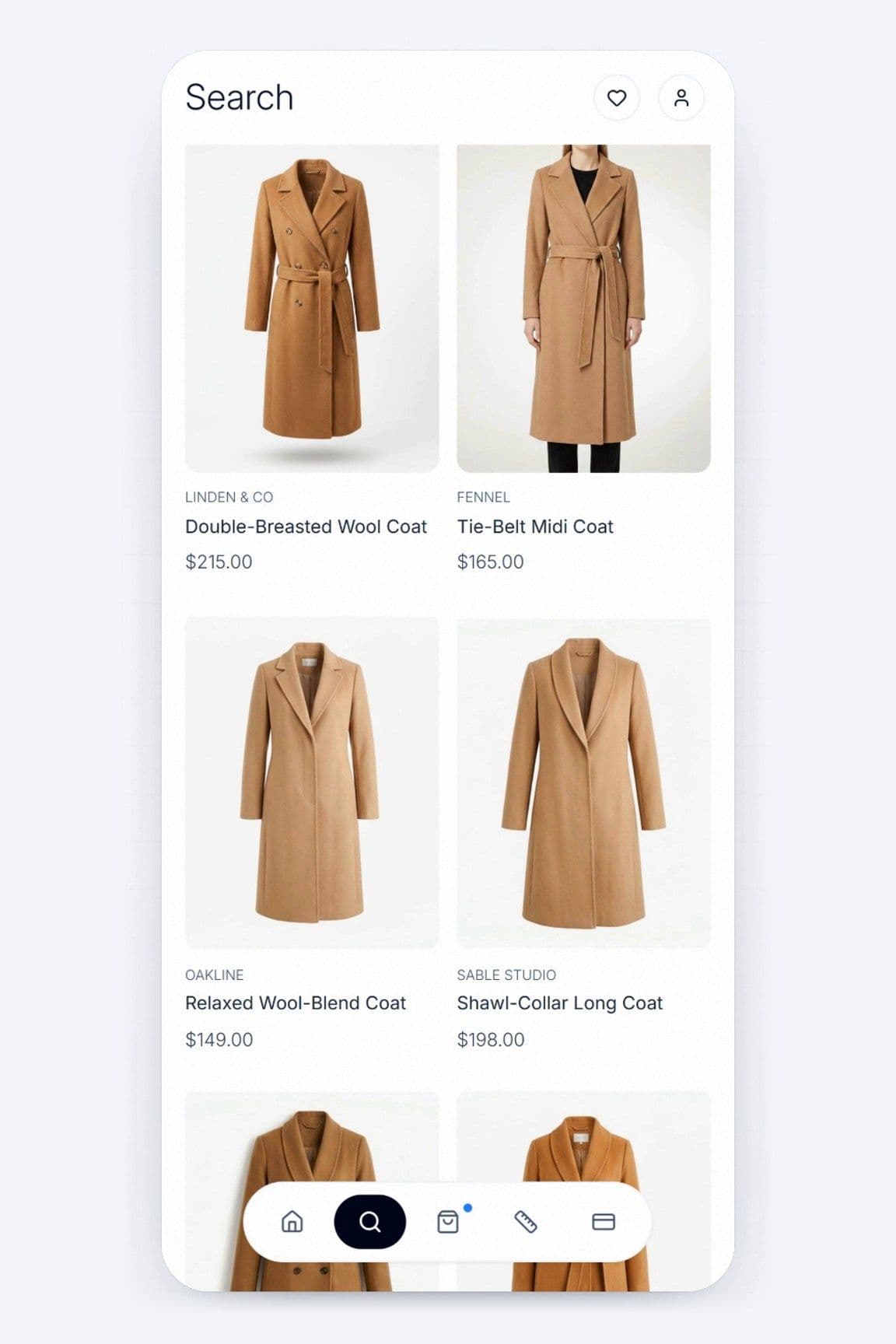
If you know what you want, describe it in the search bar by fabric, cut or brand, and Shaku searches across retailers. If you saw something but don't know what it's called, tap the camera icon next to the search bar and upload a photo or screenshot. You'll get visually similar pieces, which may not be the exact item, but it's a fast way to find the look.
Smart Scan lets you point your camera at a garment to try it on or find it in store, and it includes a quick check of visible condition (it can't see hidden construction or predict future wear). Save the pieces you like to your Wishlist, and follow your favourite brands so they show up first.
Watch it in action: Search by photo, a 23-second video walkthrough (includes AI-generated example images).
Shopping for a bump or a growing kid
Bodies that are changing are the hardest to shop for, because today's size isn't next month's. Fit Forecast (Kids and Maternity) uses a birth date or a pregnancy month to estimate how long a piece will keep fitting. Season Fit (Kids) estimates what size a child will need next season.
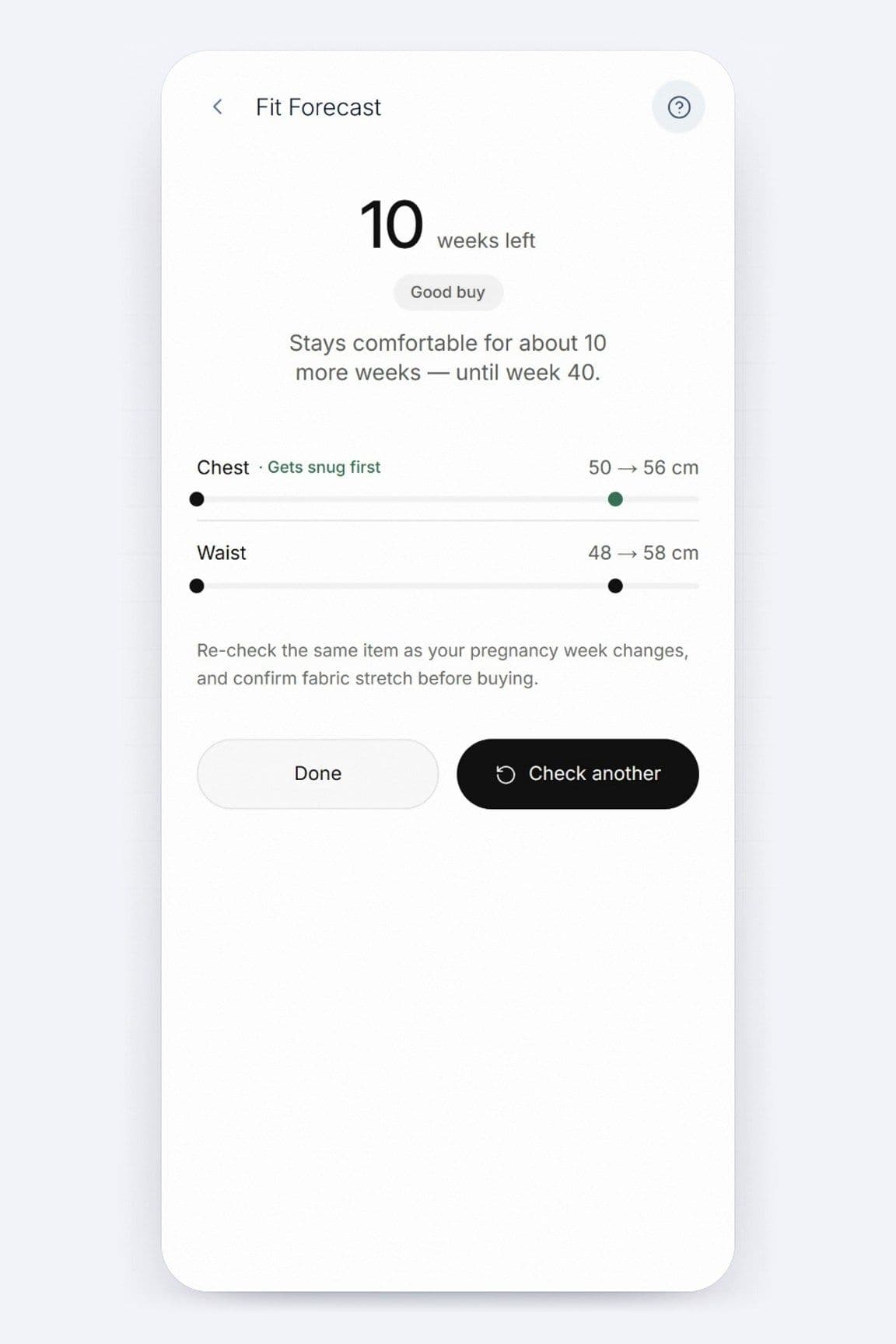
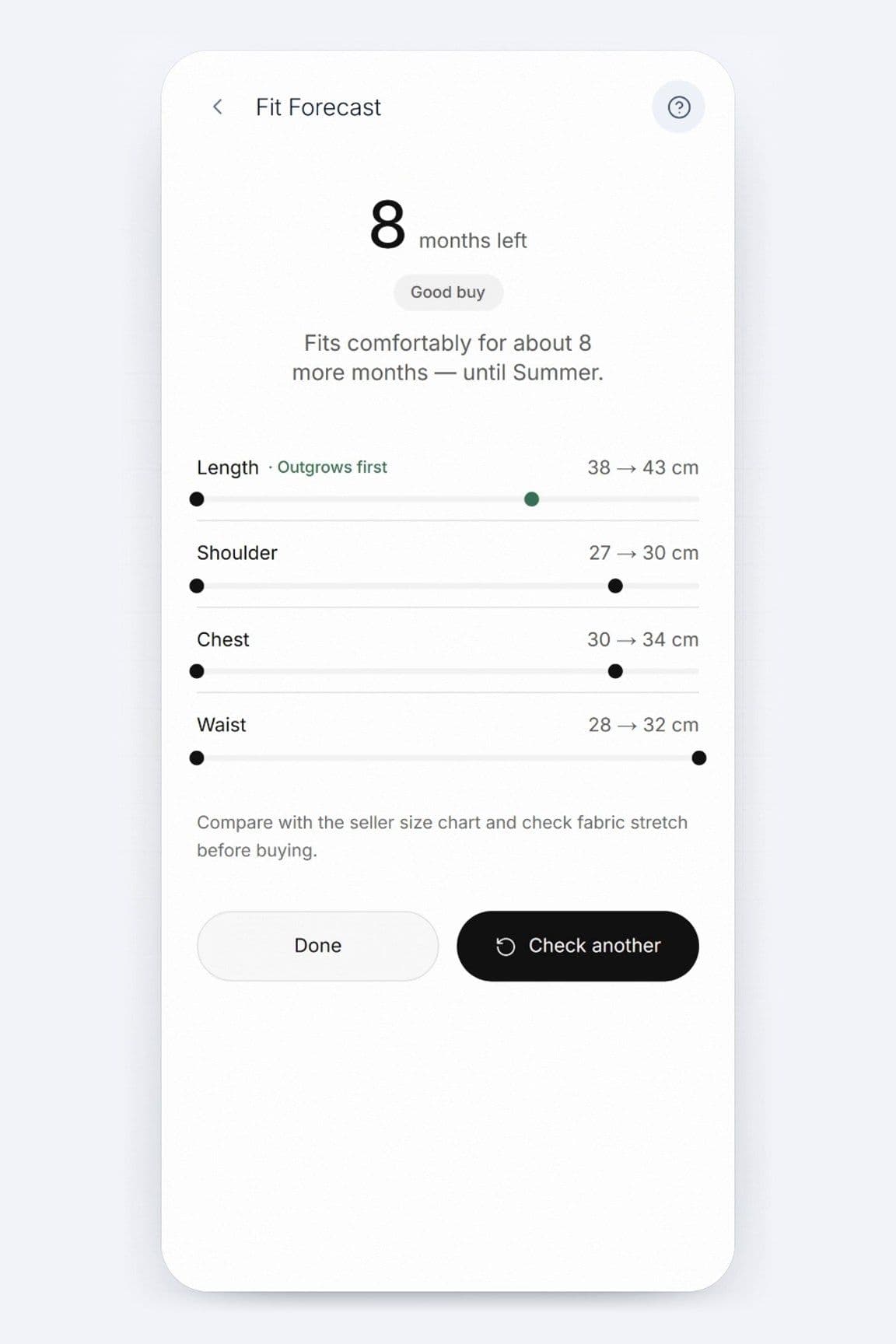
It's useful when you're deciding whether a jacket will last the winter or whether to buy a size up for spring. Forecasts are estimates, so check them again as you go.
Watch it in action: Fit Forecast for pregnancy, a 29-second video walkthrough.
Watch it in action: Fit Forecast and Season Fit for kids, a 28-second video walkthrough.
What happens to your photos
Measurement photos are personal, so here is what Shaku's privacy policy says. Where applicable, your face is automatically blurred on your device before measurement images are uploaded. Uploaded measurement images are encrypted and automatically deleted within three months. You can read the full details in the privacy policy at app.shaku.tech/privacy, including how to ask for your data to be deleted.
Knowing your measurements takes most of the guesswork out of online shopping. Take your two photos once, and every brand you browse after that starts from your own numbers.
Frequently asked questions
Do I need a tape measure to use Shaku?
No. Find My Size works from two photos taken with your phone, one from the front and one from the side. Wearing close-fitting clothes and standing in even light gives you the most reliable measurements.
How much does Shaku cost?
You can start with a 7-day free trial. After that, Shaku Premium is $4.99 CAD a month. Checkout for anything you buy happens on the retailer's own site.